Refining your SmartPreset
Step 01 — Adjust & select images
Touch up the AI edit in Lightroom wherever it doesn’t match your taste yet. Then select all images of that event.
Step 02 — Open the refinement
Go to Library → Plug-in Extras → Send corrections.
Step 03 — Send your corrections
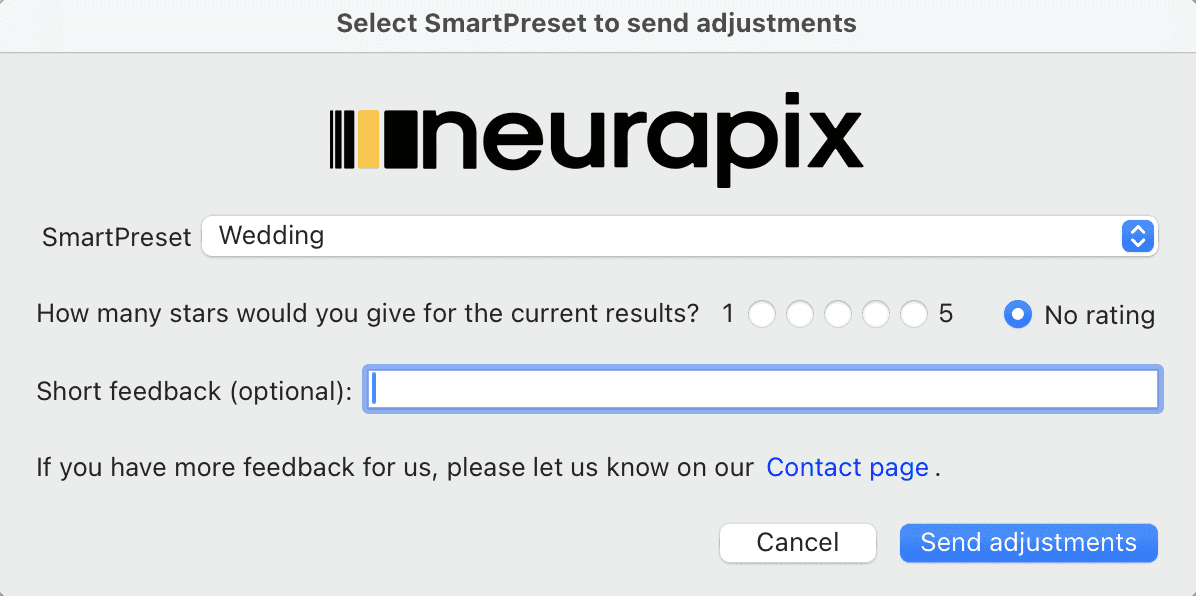
In the dialog, choose your SmartPreset. Optionally rate the current edit with 1–5 stars or add a short comment.
Then click “Send adjustments”.
Step 04 — Check your progress
In the Neurapix dashboard under “Your SmartPresets” you can always see how many edited images are left until the next training.
Step 05 — Get notified
Once enough images are reached, the AI automatically optimizes your SmartPreset. You’ll be notified by email as soon as the refined version is ready to go in Lightroom.

Focus on your craft.
Let us do the editing.

AI editing and culling for photographers – right inside Lightroom Classic.