Image selection (culling)
Step 01 — Start the selection
Select your images in the Library and start the AI-assisted image selection right from the plug-in menu: Library → Plug-in Extras → Start image selection (Beta).
Step 02 — Adjust view & settings
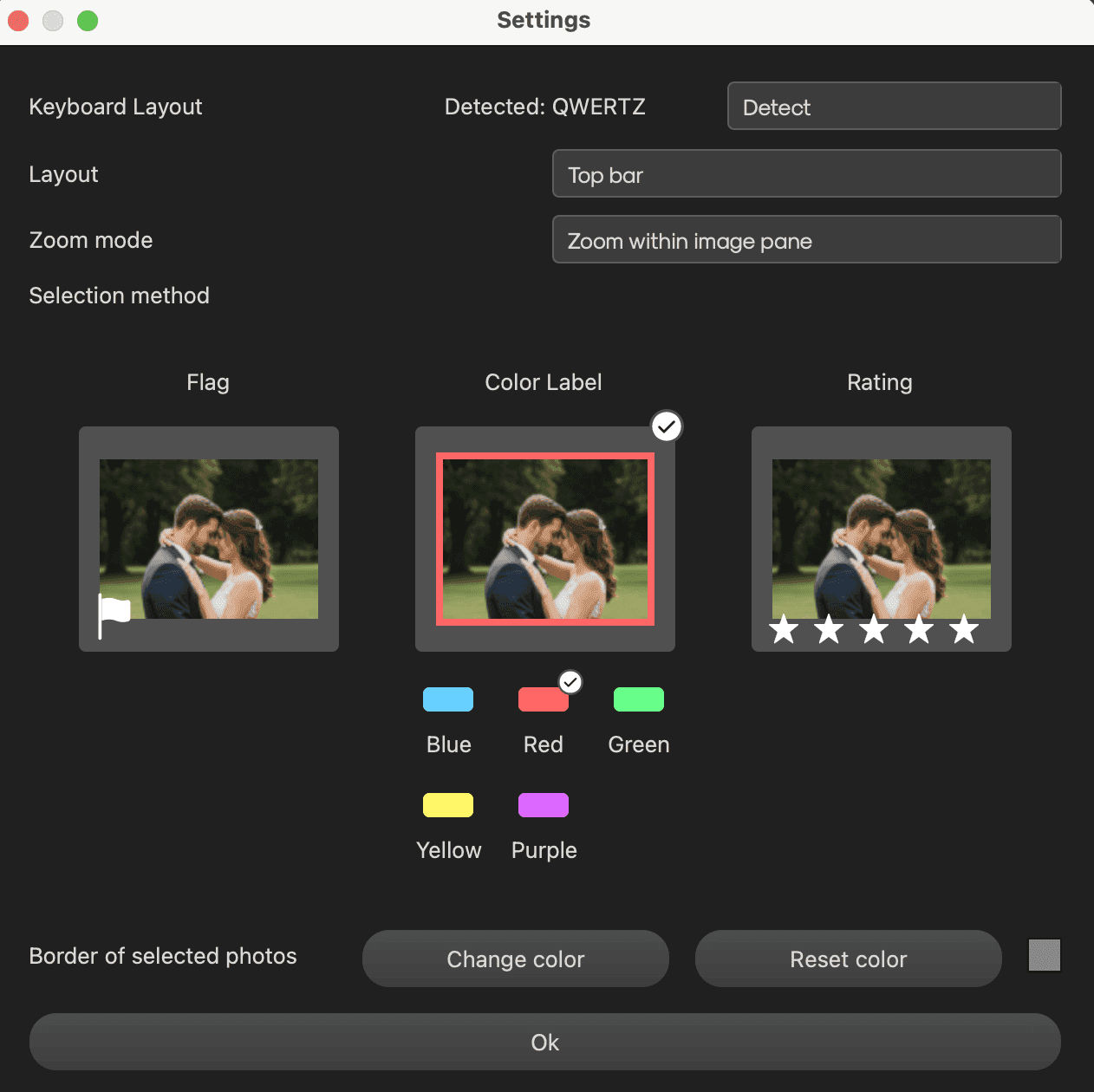
In the settings window, set the layout, zoom mode and your preferred selection method: flag, color label or rating. You can also choose the color used to frame selected photos.
Step 03 — Select at lightning speed
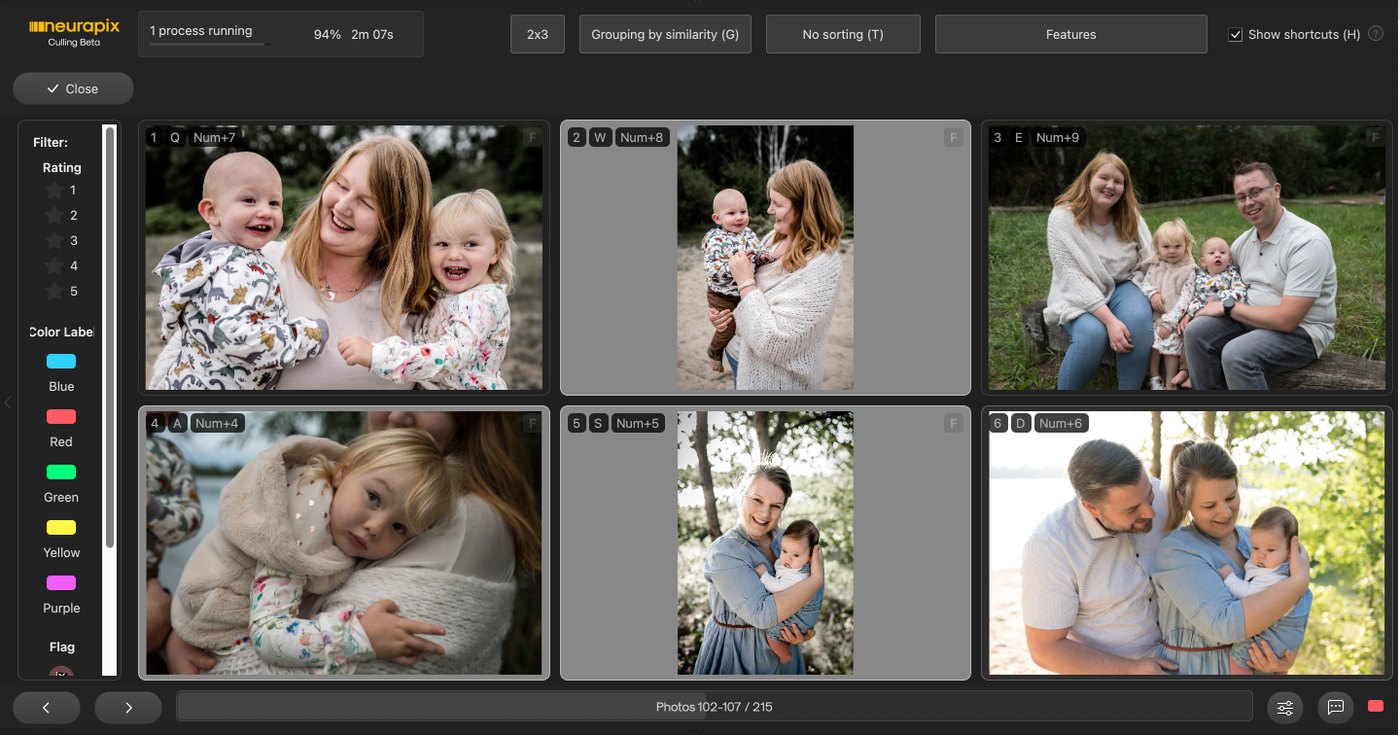
In the culling window, use the AI grouping (e.g. burst series) and rate images with keyboard shortcuts right on the image — without touching the mouse.
💡 Tip: Enable “Show shortcuts (H)” to display the shortcuts directly on the images.
Step 04 — Close & save
Click “Close” when you’re done. All marks are automatically written back to your Lightroom catalog.

Focus on your craft.
Let us do the editing.

AI editing and culling for photographers – right inside Lightroom Classic.